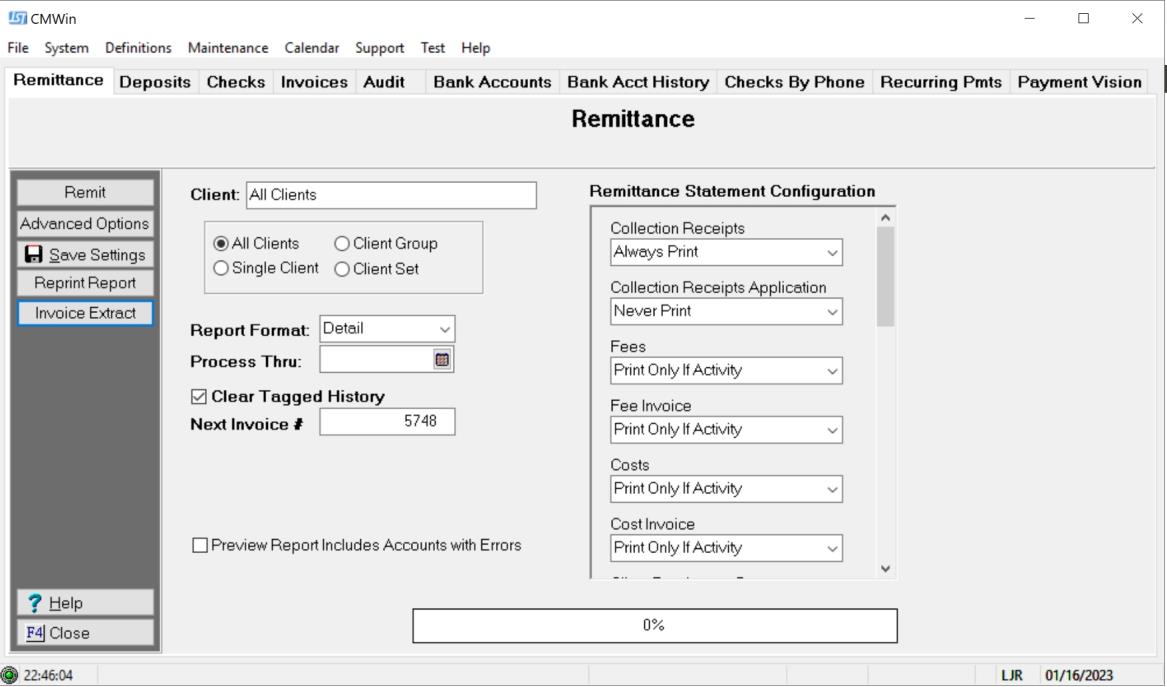
This feature will allow you to image finalized remittance invoices to Client Imaging. You can use this feature to email the invoice to the Client.
This is a Version 11 Feature. For information about the purchase of Version 11, please contact Sales.
From the Accounting Section of CollectMax, Click on the Remittance Tab to display the updated Remittance Screen.
Note: To image a remit invoice, the remittance must be finalized. Invoices created outside of the remittances will not be included in this feature.
Click the  button to display the Remit Invoice to Image Selection Screen:
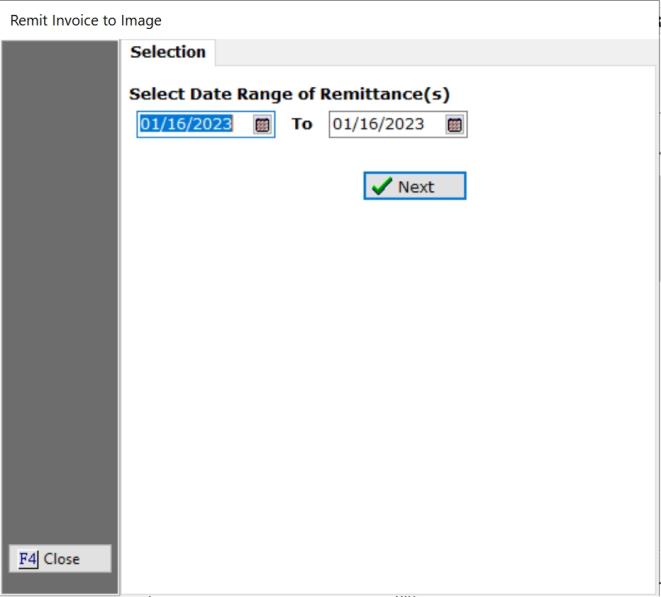
Select the date range of the finalized remit that you would like to image the invoices. Once selected click the next button and the process will search all archived remittance report to find those matching the selected date range. If there are many it make take a minute to show up on the Results Screen.
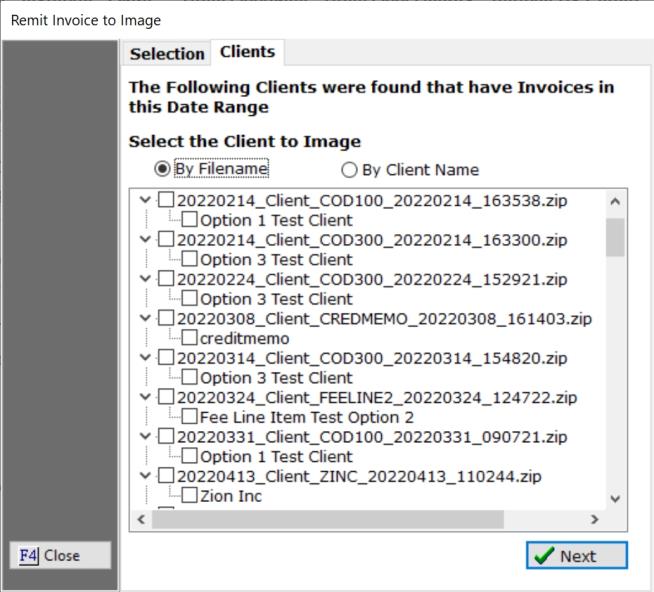
Review the resulting list of all remittances made during the selected time frame. To narrow the time frame, click the Selection Button and reset the date range.
This list will be in date and remittance name order based on clients included in the remittance. Under each remittance will be a list of the clients included in that remit. You can select the remits and clients you want by checking the box.
If you are trying to get one client included in multiple remittances in this time frame, click the option of by Client Name. This will display all clients that have a remit included in the range.
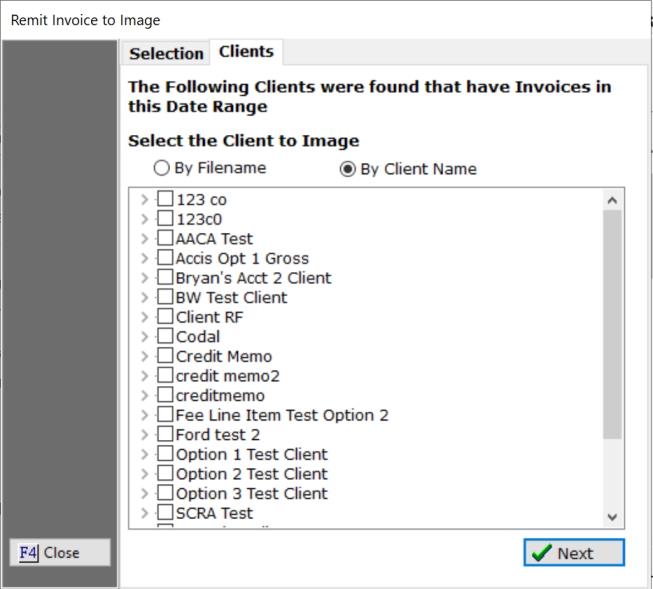
Check the box next to the clients you want and click the next button.
A list of all remittances that contain the selected clients or the remits you selected will be listed on the screen.
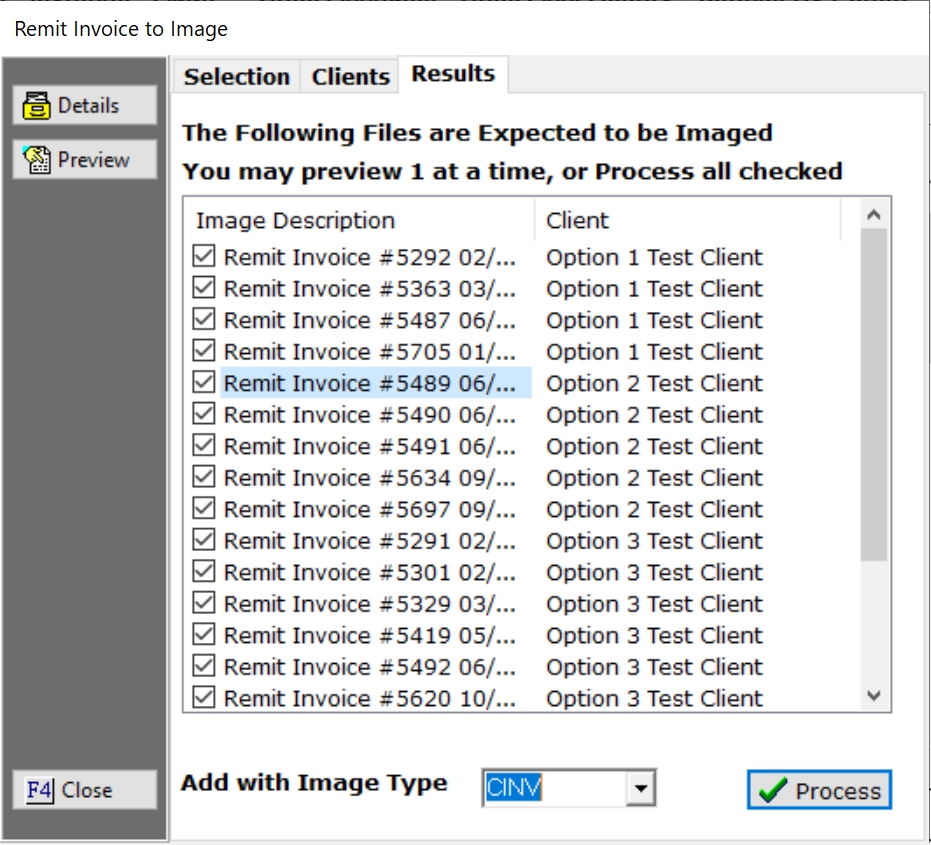
All will automatically be selected to be imaged. You can uncheck any you do not want to image.
If you would like to view the Details of an Invoice, click the name to select the Invoice.

Click the Details button to display limited details about the remittance.
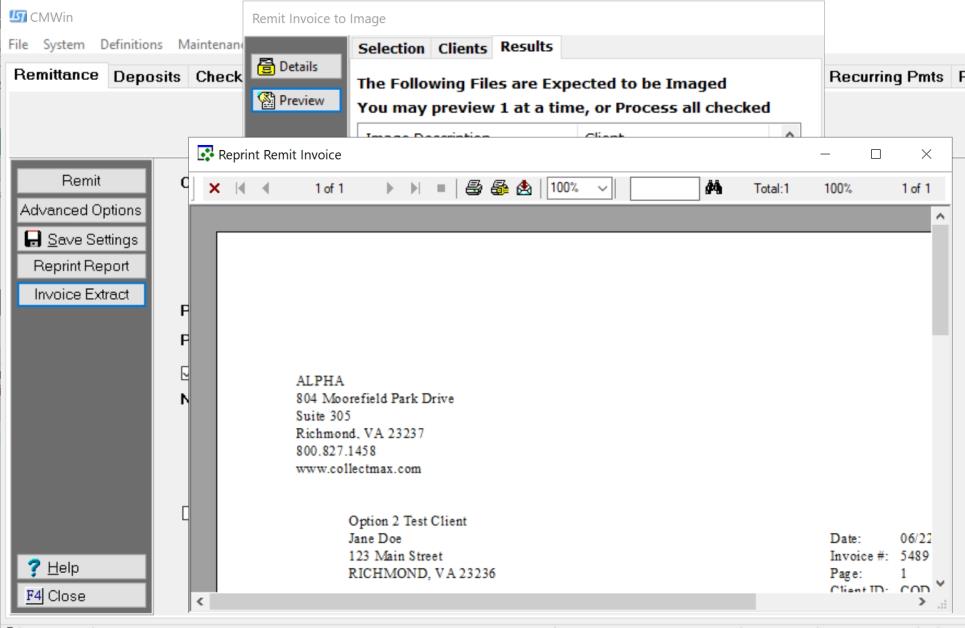
To preview the invoice that will be imaged, again select the remit and click the preview button.
Once you have reviewed the details and invoices, select a Image Type Code for Client Remittance Invoices.
Note: It is recommended that you have a unique Image Type code for Remittance Invoices. This will allow you to be able to Mass Email your clients with the invoices.
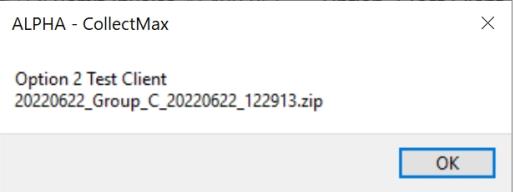
Once selected, click process and you will be asked if you are sure you want to convert these invoices to pdf and image them to the appropriate client. If so, click yes.
The process will image the selected images to the proper client and let you know how many images it processed. Click close once it is complete.
You should now be able to see the images in the Client Images.
Once the remittance invoices are imaged, you can go to the Mass Email and send the invoices to the client using the Calculated attachment feature. If you need to send the invoice to multiple email addresses for the client, you can used an user field to populate the To line. See Mass Email Modifications.